
✂️ Snip — screenshots for Mac, the gentle way
Screenshots on a Mac, without the keyboard gymnastics.
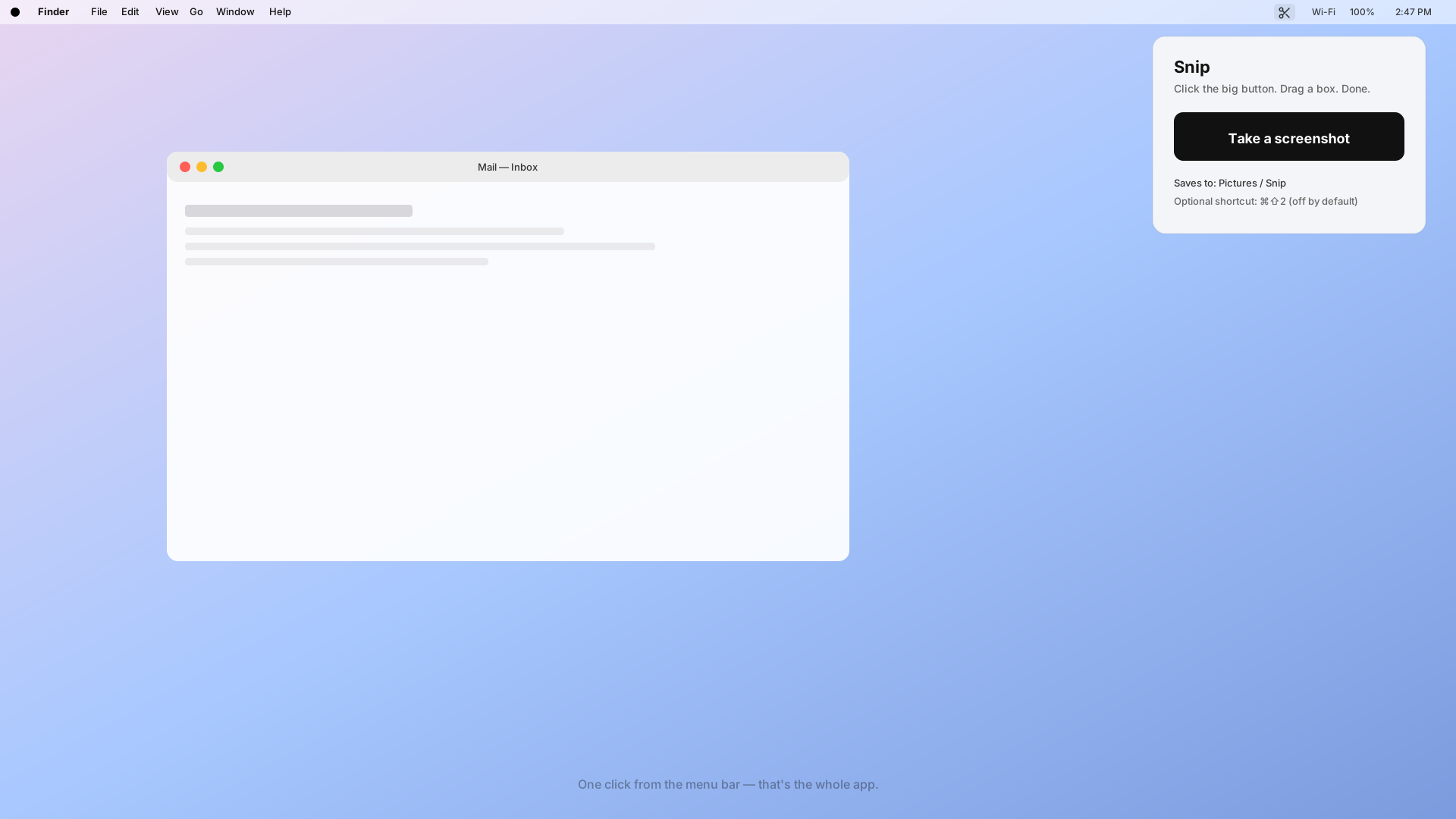
You know the shortcut is ⌘⇧⌃4 or ⌘⇧5 or something with four fingers. You can never remember. The file ends up on the desktop — or the clipboard — or nowhere — and you end up taking a photo of the screen with your phone. Snip fixes that. It sits in your menu bar as one friendly scissors icon. Click it, drag a box around what you want, done. The image goes straight to your clipboard, ready to paste into an email, and a copy is saved to a folder you actually chose.
Why people give up on Mac screenshots
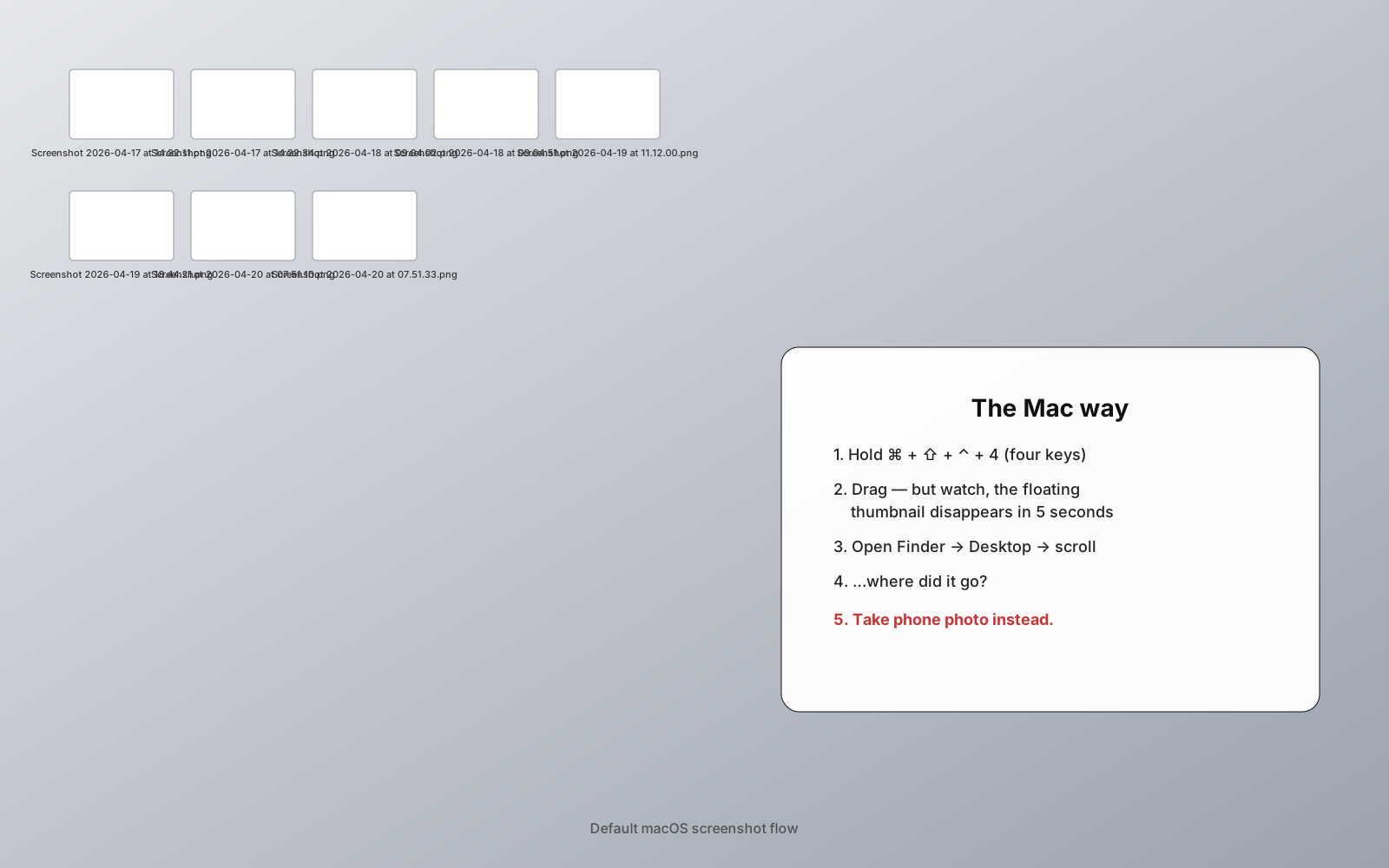
- The shortcut is four keys held at once — arthritis, cold hands, or just a bad day all break it.
- The screenshot lands on the Desktop and clutters it until the Mac feels "slow".
- The preview floats in the corner for five seconds and disappears before you can drag it.
- There's no obvious button anywhere. Nothing to click. Nothing to point at when helping a parent over the phone.
Before Snip / After Snip
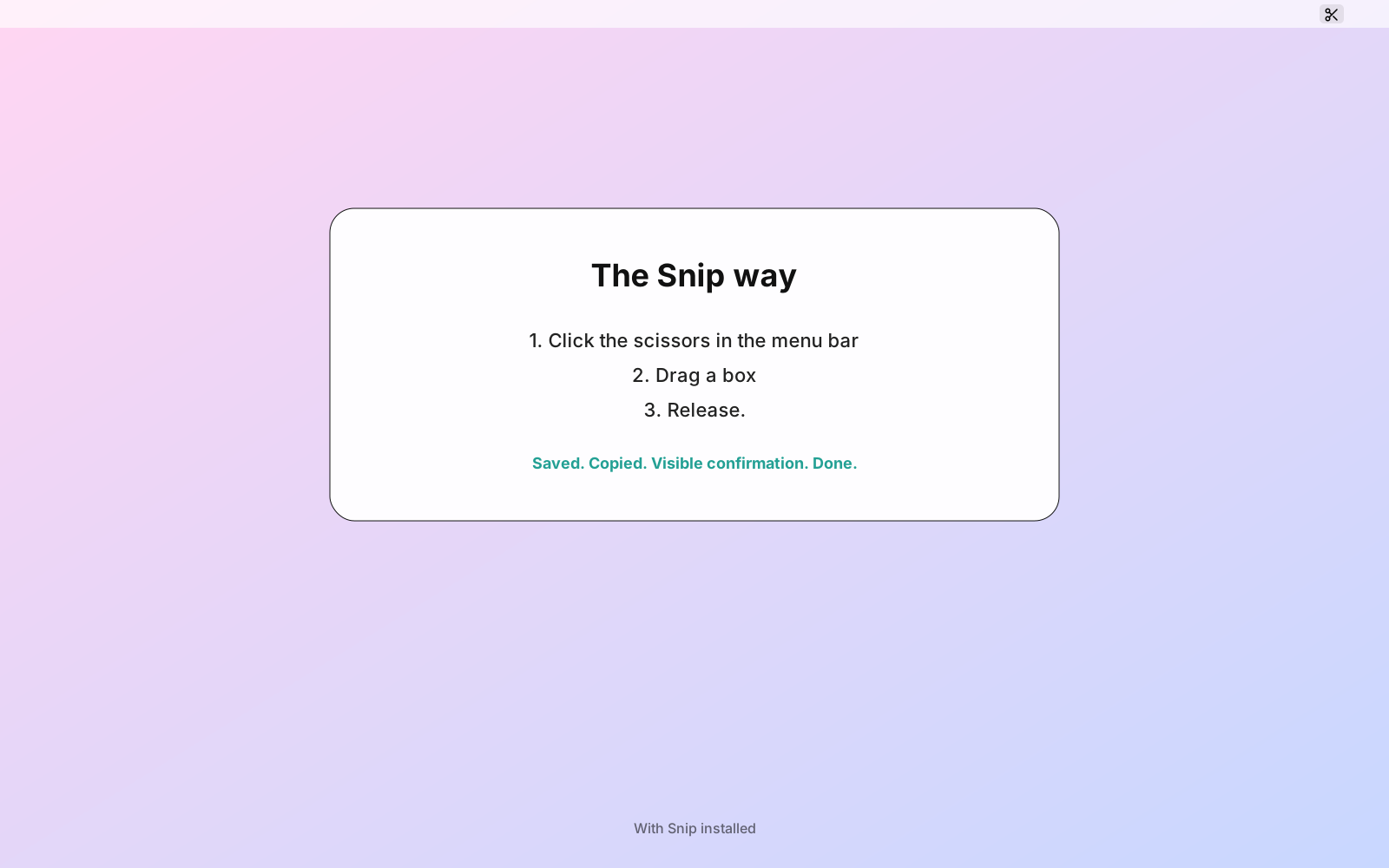
Drag the slider. On the left, the built-in macOS screenshot flow — keyboard shortcut, floating thumbnail that vanishes, file on the Desktop, maybe. On the right, Snip — one click in the menu bar, drag to select, copy + save, done. Nothing to memorize.
What Snip does
- One scissors icon in the menu bar — visible, clickable, always there.
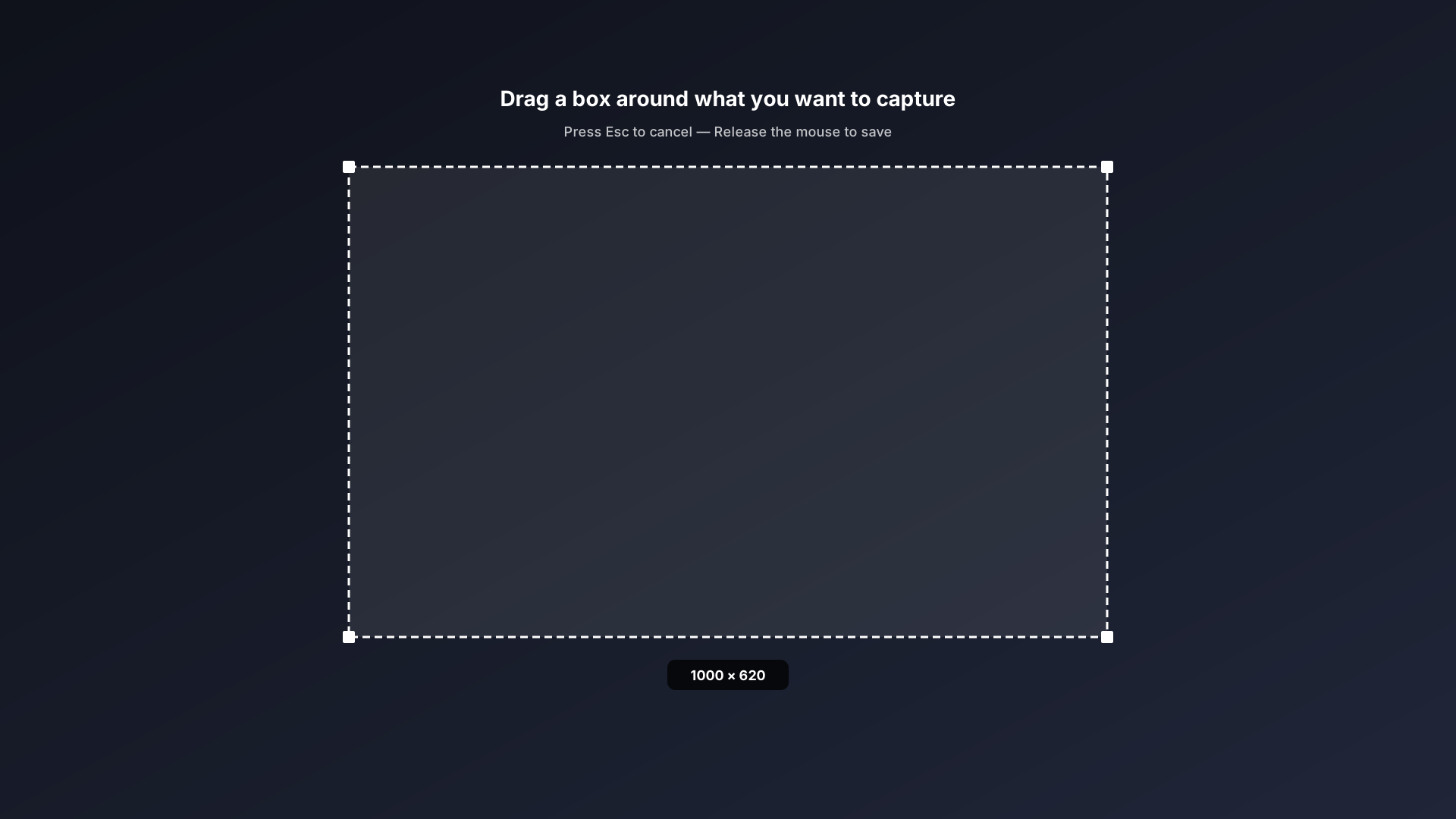
- Click, drag a box, release. That's the whole gesture.
- The screenshot is copied to the clipboard and saved to the folder you picked during setup.
- A big, slow-fade confirmation — you can actually see it worked.
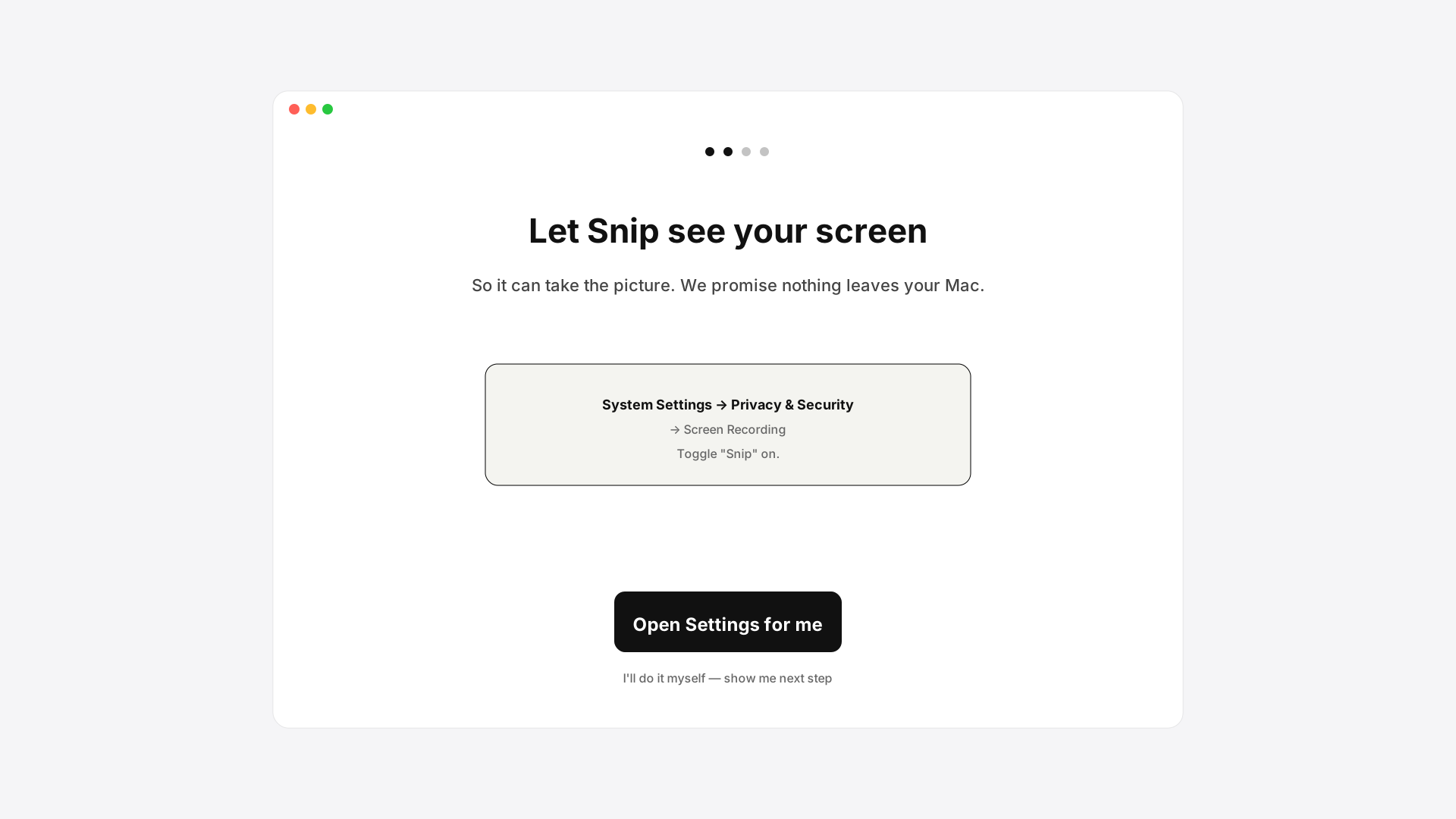
- Large-type onboarding that walks you through granting Screen Recording permission step by step.
- Optional global shortcut if you want one — but you never have to use it.
Built for people who hate software
- Designed with parents, grandparents, and "I'm not a computer person" users in mind.
- Every screen has one big button and one clear sentence. No settings maze.
- System font, native title bar, real macOS vibrancy — feels like an Apple app, not an Electron mess.
- Works on Apple Silicon and Intel Macs (macOS 12+).
- No account. No subscription. No cloud. Your screenshots never leave your Mac.
- One-time payment. Lifetime updates on the lifetime tier.
- Email support answered by a human, usually within a day.
30-day no-questions refund
If Snip doesn't click for you, reply to the receipt email within 30 days and we refund the purchase in full. No form, no call, no "we'll get back to you."
What you need
A Mac running macOS 12 (Monterey) or newer. Apple Silicon (M1/M2/M3/M4) or Intel — one download, both supported. About 80 MB of disk space. Screen Recording permission, which Snip walks you through granting on first launch.